Plain-English guides
Change your minecraft skin, without the guesswork.
Clear, tested steps for changing, installing and making minecraft skins on every platform — plus the 64×64 template and the file basics that trip people up. Checked against the launcher on 9 September 2026.
Your skin, four ways
every step verified against the current launcher
Before → after · one custom 64×64 PNG
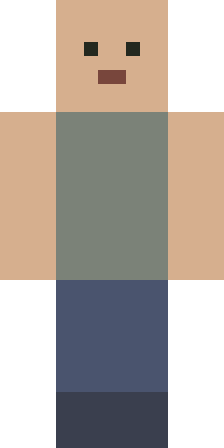
A plain skin
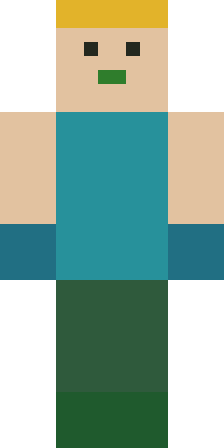
A custom skin
Both characters — and every diagram on this site — are drawn from scratch. Nothing here is scraped from a community skin site.
Fresh guides
all guides →How to Get a Cape in Minecraft (October 2026): Every Cape You Can Still Get, and How to Equip It
Three official capes are reachable in October 2026: the Pan, Aurora and Hero capes. Deadlines, equip steps for Java and Bedrock, and mod capes.
How to Make a Minecraft Skin Pack (.mcpack): Bedrock, Consoles and Education Edition
Build your own Bedrock skin pack from four files, import it as an .mcpack, and see where it works: Windows, phones, consoles and Education.
Minecraft Default Skins: All 9 (Steve, Alex and the Seven Added in 2022) and How to Switch Back
Minecraft has nine default skins: Steve, Alex and seven added in 2022. Names, arm widths, when each arrived, and how to switch back.
Change Your Minecraft Skin on Mobile & Console
Mobile can import a custom PNG; consoles can't. Here's exactly how each works, plus the phone-to-console sync trick and why PlayStation resists it.
Classic vs Slim Minecraft Skins (Steve vs Alex)
The only real difference between the Classic and Slim models is arm width — 4 pixels vs 3. Here's how to tell which you have and why it matters.
How to Back Up (and Recover) Your Minecraft Skins
The game keeps your skin, not you. Here's how to save your originals, recover a lost Java skin, and why Bedrock skins are harder to get back.
Changing a minecraft skin is quick once you know where the button is — and maddening when a guide skips the one step your platform actually needs. SkinSteps fixes that by keeping a separate, tested walkthrough for each edition instead of one blurry set of steps for all of them.
Start with how to change your minecraft skin, which walks through Java, Bedrock, mobile and console in order and is honest about the one place custom skins do not work: consoles have no way to import your own PNG file.
Making a skin instead? Grab the 64×64 skin template to see where the head, body, arms and legs live, and read the skin file format explained so your PNG is the right size before you ever open the game.
Everything you see here — the two example characters above and every diagram in the guides — is drawn from scratch for this site. We never republish skins made by other people, and every fact carries the date we checked it.
Frequently asked questions
How do I change my minecraft skin?
On Java, open the Minecraft Launcher, click the Skins tab, choose New Skin, pick Classic or Slim, browse to your 64×64 PNG and press Save & Use. On Bedrock (PC, mobile), open the Dressing Room, go to Classic Skins and Import the PNG. Our step-by-step guide covers every platform in order.
What size is a minecraft skin file?
A modern minecraft skin is a 64×64-pixel PNG with transparency. The old 64×32 layout still loads but has no second layer or separate left arm and leg. Anything larger than 64×64 is not standard and needs a mod to display.
Can I put a custom skin on Xbox, PlayStation or Switch?
Not directly — as of September 2026 consoles have no file picker for importing your own PNG. You can use the Character Creator or a Marketplace skin, or set a custom skin on a phone or PC signed in to the same Microsoft account and hope it syncs. PlayStation is the strictest and often will not show it.
What is the difference between the Classic and Slim models?
Arm width, and nothing else. Classic (Steve) arms are 4 pixels wide; Slim (Alex) arms are 3 pixels. A skin drawn for one model looks stretched or gapped on the other, so match the model to the file.
Why is my new skin not showing up?
The usual causes are a model mismatch, a caching delay, or — on Bedrock — the “Only Allow Trusted Skins” setting blocking the import. Turn that setting off, confirm the file is a 64×64 PNG, and restart the game. Multiplayer servers can also hide custom skins on their end.