Minecraft Default Skins: All 9 (Steve, Alex and the Seven Added in 2022) and How to Switch Back
Minecraft has nine default skins: Steve, Alex, Sunny, Kai, Makena, Zuri, Efe, Ari and Noor. Steve is the original from 2009, Alex arrived with slim arms in 2014, and the other seven joined in October 2022. All nine ship with both Java and Bedrock, every one of them can be worn with wide or slim arms, and you can switch back to any of them in a minute from the launcher or the Dressing Room.
Most pages on this topic are launch news from 2022 that stops at the names. This guide adds what you actually need now: a reference table, the release timeline, the reasons the game sometimes puts you in a default you didn't pick, and the switch-back steps for each edition. Facts were checked against the Minecraft Wiki and minecraft.net on 10 Oct 2026.
The nine default skins
Each default has an out-of-the-box arm width, but that's only the starting point. The Minecraft Wiki lists all nine in both the wide and the slim model, so you can wear Steve with slim arms or Noor with wide ones. The look notes below are short summaries of the Minecraft Wiki's character pages.
| # | Skin | Default arms | Look | Default since |
|---|---|---|---|---|
| #1 | Steve | Wide (4 px) | Cyan shirt, dark blue trousers, short dark brown hair | 2009 (earliest Java builds) |
| #2 | Alex | Slim (3 px) | Orange ponytail, light green tunic, brown trousers | 2014 (Java 1.8) |
| #3 | Sunny | Wide (4 px) | Blue overalls over green flannel, metal prosthetic arm | 2022 |
| #4 | Kai | Wide (4 px) | Blonde ponytail, black jacket with purple trim, sandals | 2022 |
| #5 | Makena | Slim (3 px) | Curly dark hair, yellow sweater, red shorts | 2022 |
| #6 | Zuri | Wide (4 px) | Buzz cut, red polo shirt, khaki trousers | 2022 |
| #7 | Efe | Slim (3 px) | Purple hair, gold earring and trim, pale cardigan | 2022 |
| #8 | Ari | Wide (4 px) | Long brown braid, reddish-yellow tunic, teal trousers | 2022 |
| #9 | Noor | Slim (3 px) | Long brown locs, red jacket, baggy green trousers | 2022 |
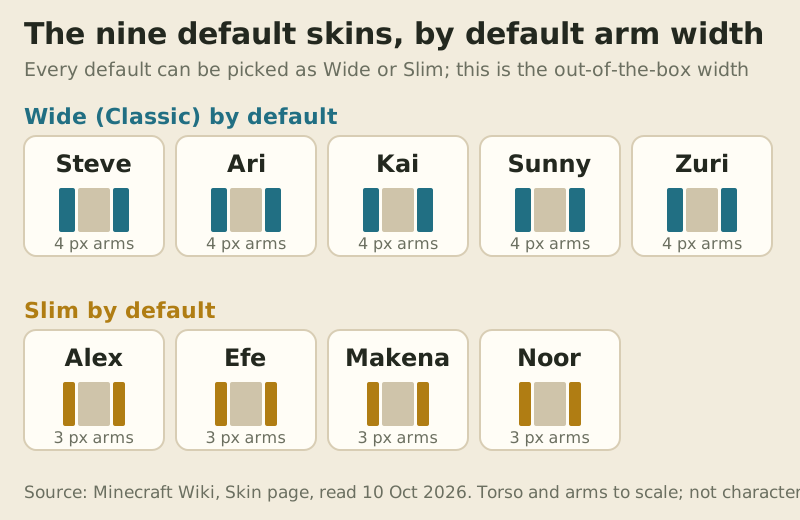
The arm width is the only physical difference between the models. Slim arms are 3 pixels wide and classic arms are 4, and the choice is cosmetic: armour, reach and hitbox are the same either way. If you're not sure which suits a custom design, our classic vs slim guide compares the two shapes side by side.
Steve and Alex: the originals
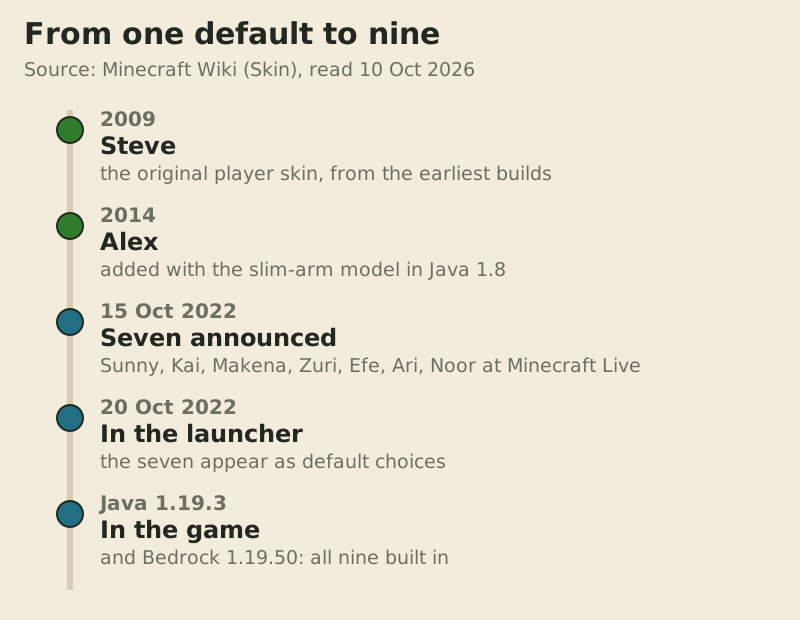
Steve predates Minecraft itself. According to the Minecraft Wiki, the character began in Zombie Town, an unreleased prototype Notch made in early 2009, and became the player model in the very first Java builds that year. For five years Steve was the only default, which is why "Steve" still means "anyone who never changed their skin" on many servers.
Alex came with Java Edition 1.8 in 2014, together with the slim player model. Mojang Support announced on 16 Sep 2014 that slim-armed skins were available to everyone through the profile page. Alex has had texture refreshes since. New versions of both Steve and Alex reached the launcher on 20 Aug 2022, and Bedrock 1.19.50 changed both textures again, so if your memory of either looks slightly different from the current one, you're not imagining it.
The seven added in 2022
Sunny, Kai, Makena, Zuri, Efe, Ari and Noor were announced at Minecraft Live on 15 Oct 2022. The Minecraft Wiki dates their arrival in the Minecraft Launcher to 20 Oct 2022, five days after the reveal. They then became part of the game itself in Java Edition 1.19.3 (first in snapshot 22w45a) and Bedrock Edition 1.19.50.
Two details trip people up. First, the seven aren't a Marketplace pack and never cost anything, so a store listing that sells "the new default skins" is selling you something you already have. Second, Bedrock's Character Creator has its own preset characters you can edit piece by piece. Those are separate from the nine classic defaults, and a Character Creator look is built from items rather than a single skin file.
Why Java gave you a random default
If you open Java Edition and find yourself as Noor or Zuri when you expected your own skin, the game hasn't been tampered with. Java only shows skins that come through Mojang's account services, and when it can't get yours it falls back to one of the nine defaults. You don't get to choose which one, and the wiki doesn't document the exact rule, so we won't guess at it.
The common triggers are worth knowing, because each has a different fix:
- Offline play. The Minecraft Wiki notes that custom skins can't be seen when you aren't logged in or are playing offline, and since 1.19.3 any of the seven newer defaults can be assigned to offline players.
- Unofficial launchers and offline-mode servers. Without a signed-in Microsoft account there's no profile to fetch a skin from, so everyone looks like a default.
- A skin that hasn't loaded yet. After a fresh upload, a restart and a short wait usually sort it out.
- Mixed Java and Bedrock servers. Where a third-party bridge lets both editions join the same server, players from the other edition may see you as a default, because the two editions store skins separately.
On Bedrock, the same symptom has its own causes. Custom PNGs are imported from the device you're holding, while the wiki ties only Marketplace skins to your sign-in on every device, so a skin you imported on your phone may not be there on a new tablet. Other players with Only Allow Trusted Skins switched on may also see a default in place of your custom import. Our skin not showing fixes cover each of these step by step.
How to switch back to a default skin
Going back to a default is the same process as applying any skin, except that you pick from the built-in list instead of uploading a file. Your custom skin isn't deleted on Java; it stays in the launcher's library so you can switch again later.
Java Edition (Minecraft Launcher)
- Open the Minecraft Launcher and choose Minecraft: Java Edition.
- Open the Skins tab. The default skins sit in the library alongside anything you've uploaded.
- Pick the default you want, choose Classic (wide) or Slim arms if the launcher asks, and select Use.
- Restart the game if it was already running, because Java loads your skin at launch.
You can also do this from your profile on minecraft.net, which edits the same account skin. Either route changes what every other player sees, because Java fetches your skin from your account rather than from your computer. That also means the change follows you to any PC you sign in on, so there's no file to copy between your machines afterwards. Our Java upload walkthrough shows the same Skins tab in more detail.
Bedrock on Windows, mobile and consoles
- Open the Dressing Room. It sits on the main menu, the profile screen and the pause menu.
- Choose a slot. The Dressing Room holds five, so you can keep a custom skin in one and a default in another.
- In an empty slot, pick one of the nine defaults from the list the game offers.
- Equip it and return to the game.
This works the same on Xbox, PlayStation and Switch, since the defaults are built into every copy of Bedrock. If you want a fuller walkthrough of the Dressing Room, our Bedrock skin guide has one, and the main skin-change guide covers every edition in one place.
Customising a default instead of replacing it
A default makes a good starting point for your own design. Mojang still hosts the Steve and Alex texture files as editing templates at assets.mojang.com/SkinTemplates/steve.png and alex.png, both live when we checked on 10 Oct 2026. Open one in any image editor, keep it at 64×64, repaint what you like, and upload the result. Our blank skin template labels every region so you know which pixels land where.
Treat the seven 2022 characters the same way you'd treat Steve: fine to wear and fine to tweak for your own use. If what you really want is a look none of the nine can give you, such as armour shapes, hats or props, that's Marketplace territory. Plenty of packs in the official Minecraft Marketplace add 3D shapes through custom geometry, something no single PNG can do. We're an affiliate there, so buying through that link may earn SkinSteps a referral fee while you pay the usual amount. Minecoin prices move, so we leave them out.
Before you replace a custom skin you made yourself, keep a copy of the PNG. The game won't export it for you later, and our skin backup guide explains what can and can't be recovered.
Edge cases
A few situations don't fit the usual pattern. On a public server with its own skin plugin, the server may override what you chose, and only the server's settings decide what others see. On Minecraft Realms and normal online servers, your account skin shows as usual. Resource packs can also replace the default skin files, but the wiki notes that change only shows for players using that pack, and it applies to everyone wearing that default, not just you.
If you're seeing two Steves who look different, one may be the refreshed texture and the other the older one bundled with a game version from before 1.19.3. And if a younger player asks why their friend looks like Sunny when they never picked it, the offline and mixed-server causes above are almost always the answer.
Default skin questions
What are the 9 default Minecraft skins?
Steve, Alex, Sunny, Kai, Makena, Zuri, Efe, Ari and Noor. Steve dates from 2009, Alex from 2014, and the other seven were added in October 2022. All nine are free and built into Java and Bedrock.
What are the names of the new default skins?
Sunny, Kai, Makena, Zuri, Efe, Ari and Noor. They were announced at Minecraft Live on 15 Oct 2022 and arrived in Java 1.19.3 and Bedrock 1.19.50.
How do I go back to a default skin?
On Java, go to the Skins tab in the Minecraft Launcher, choose a default and select Use. On Bedrock, open the Dressing Room, choose a slot and pick one of the nine defaults, then equip it.
Why did my skin change to Alex or Noor?
Your own skin didn't load. On Java that happens offline, on unofficial launchers or before a new upload has loaded; the game then shows one of the defaults. On Bedrock, a skin imported on one device may be missing on another.
Is the Steve skin wide or slim?
Steve uses wide 4-pixel arms by default and Alex uses slim 3-pixel arms, but every default, Steve included, can be worn in either width.
New to this? Start with the full walkthrough: how to change your minecraft skin.